


Cut and Paste Photos
4.64.32K Reviews
App Specs
- Version
- 2.6.8
- Updated On
- License
- Free
- Downloads
- 50,000,000+
- Developer
- ZipoApps
- Categories
- Photography
- Platform
- Android
Screenshots
 Analysis by AppCompare
I like photo editors that make one creative task clear instead of burying it in a maze of menus. Cut and Paste Photos is built around lifting a subject from one picture and placing it into another, which makes it easy to understand what you can do with it. I’d reach for it to make a playful image for a group chat, try a quick collage idea, or give an ordinary snapshot a deliberately silly twist—not to replace a full editing suite.
It’s a free photography app from ZipoApps, rated for Everyone, and its 4.6 average from around 355,000 ratings suggests it has found a broad audience. It has passed 10 million installs, and the current version is 2.6.8. Those details make it an established option to try, though they don’t tell you whether its cutout workflow will suit your hands, eyesight, or editing habits. In my view, that depends most on how comfortable you are selecting an object on a small touchscreen.
Getting Started: Easy Peasy Photo Editing
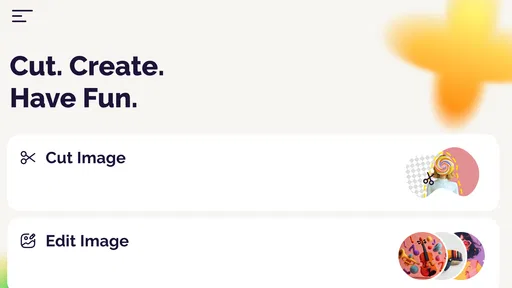
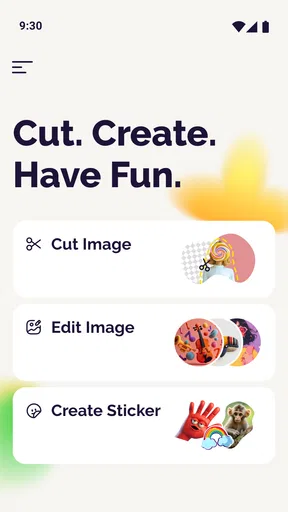
First off, let’s talk about the user interface. It’s as straightforward as it gets. You don’t need to be a tech wizard to figure out Cut and Paste Photos. Once you fire up the app, you’re greeted with a clean and intuitive dashboard. The options are laid out neatly, so even if you’re new to photo editing, you’ll feel right at home.
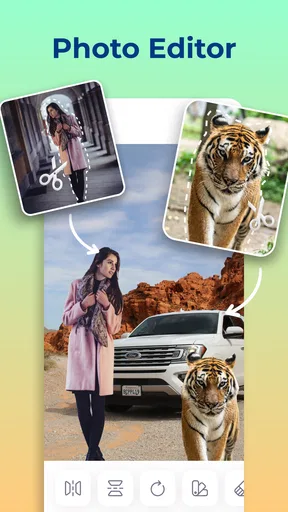
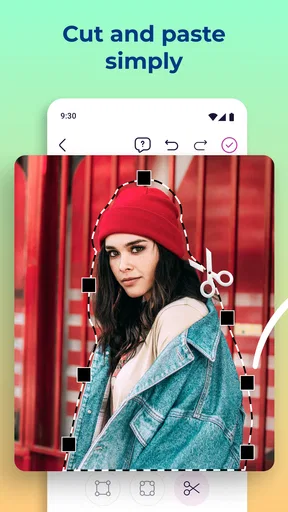
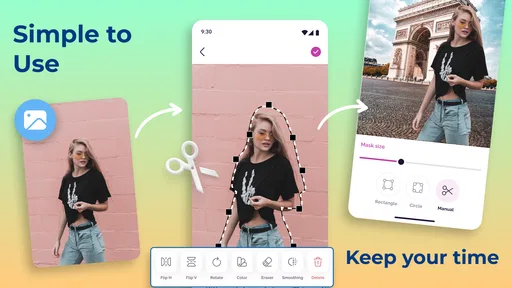
To begin your creative journey, simply select a photo from your gallery or snap a new one using the in-app camera. The next step is where the fun begins. You can cut out any part of the image with precision. The app provides various tools like the lasso tool, which is perfect for more detailed cuts, or the magic wand if you’re dealing with solid backgrounds. It’s pretty forgiving too, with undo and redo options if you happen to make a mistake.
Readable controls, careful cutouts
The simple layout is helpful when you’re learning, but the main precision challenge is inherent to this kind of editing: your finger can cover the edge you’re trying to trace. For a cleaner result, I’d start with a subject that has a distinct outline and a background that contrasts with it. A person in a dark coat against a pale wall, for example, is easier to isolate than wispy hair against a busy tree line. Use the lasso when the outline needs human judgment; reserve the magic wand for backgrounds with clear, consistent areas. Neither shortcut can rescue a photo where subject and background blend together.
Undo and redo matter more here than they do in a basic filter app. Rather than trying to trace an entire complicated shape in one pass, I’d work in smaller sections and inspect the edge before moving on. If the first selection is rough, undoing early is less frustrating than pasting it onto a new background and discovering the problem later. This is a practical workflow, not a promise that every fine detail will be selected perfectly.
Features That Make It Stand Out
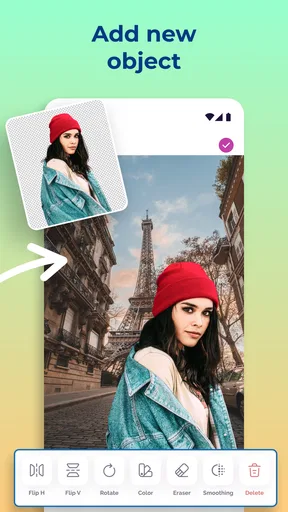
What really sets this app apart is its versatility and functionality. Once you’ve made your cutout, you can paste it onto another image. The app offers a bunch of backgrounds to choose from, or you can import your own. Imagine placing your best friend on a beach in Hawaii or sending your cat to the moon – the possibilities are endless!
Worth Reading Before You Choose

Flipboard Shows What News Apps Must Do Beyond the Feed

Switching to Android Auto Means Rethinking Your Driving Routine

Google Calendar Makes a Crowded Week Easier to Manage

Ludo King Makes the Most of the Minutes Between Plans

Baby Panda World Brings Quick Play to Modern Phones, but Its Game Library Feels Busy

ESPN’s Live Game View Makes Following Close Games Easier
Another cool feature is the ability to add text and stickers. You can personalize your creations further with a variety of fonts and colorful stickers. It’s a fantastic way to add that extra bit of flair to your photo collages.
A small creative project, not a full editing studio
The distinction between a subject cutout and a polished composite is worth keeping in mind. A pasted figure can look amusing even when its lighting or scale does not quite match the background; a convincing scene needs those details to line up. For a joke image, that mismatch may be part of the charm. For a product image, portfolio piece, or anything meant to look photographic, it can make the result feel pasted together. I’d treat the app as a quick creative tool and judge the finish against the purpose of the image.
A useful everyday project is a birthday message for a friend: choose a clear portrait, place the cutout over a simple background, then add a short line of text or a sticker. Keeping the background uncluttered gives the subject room to read, while a short caption is less likely to compete with the picture. For a family group chat, the same workflow can turn a pet photo into a lighthearted greeting without requiring a desktop editor or a long learning process.
There’s also a practical reason to think about source images before editing. A bright, sharp photo with space around the subject gives you more flexibility than a tightly cropped shot where ears, hair, or clothing touch the frame. If you want to reuse the cutout on several backgrounds, make the selection with that in mind: avoid trimming close to the subject simply to fit the first scene. That extra margin can make later placement less awkward.
How it compares with familiar photo editors
Compared with a general-purpose editor, this app’s appeal is its focused cut-and-paste idea: you can spend your attention on selecting a subject, choosing a destination image, and adding a little decoration. A full editor is usually the better choice when you need extensive color correction, layers, detailed retouching, or precise control over a finished composition. A ready-made collage app may be faster if your main goal is arranging several whole pictures in a grid, but it is less suited to the specific joke or scene change that depends on lifting one object out of its original frame.
That makes the choice fairly simple. If you want to experiment with a single person, pet, or object and place it somewhere unexpected, this is a more direct fit than opening a complex editing workspace. If you need a clean commercial-looking montage, subtle blending, or a repeatable professional workflow, I’d use a more capable editor instead. The focused approach saves effort for casual edits, but it also sets a ceiling on how much control you should expect.
Performance: Smooth Sailing
Let’s face it, nobody likes an app that lags or crashes, especially when you’re in the middle of crafting a masterpiece. Fortunately, Cut and Paste Photos delivers a seamless experience. It runs smoothly, and I didn’t encounter any annoying pop-ups or ads getting in the way. The app is lightweight, so it doesn’t hog your phone’s resources either.
The developers have done a commendable job in optimizing the app. Even with complex edits, it performs admirably without slowing down your device.
For a quick edit while waiting for a friend or sitting on a bus, a straightforward cutout project is easier to fit into a spare moment than a multi-step desktop workflow. I’d still save careful tracing for a steady setting: selecting around a small detail is harder when your hand is moving or the screen is catching glare. If you are working in a bright place, enlarging the source image before starting—when your phone’s normal viewing controls allow it—can help you judge the edge more comfortably, though the app’s own selection behavior remains the deciding factor.
Motor and sensory comfort in real use
Cutting around a subject asks for repeated, controlled touch movements, so it may be tiring or difficult for someone with limited dexterity, tremor, or discomfort from prolonged screen use. The undo and redo options provide a way to recover from slips, but they do not remove the need to trace. I’d keep the first project short and choose a simple silhouette; that reveals quickly whether the gestures feel manageable before you invest time in a detailed portrait.
Visual comfort also depends on the image itself. High-contrast subjects are easier to judge than low-contrast ones, and a busy background can make the boundary hard to see. If small controls or fine edges are difficult to inspect, this kind of touchscreen cutout may not be a comfortable task even when the overall interface feels approachable. Someone who mainly wants to add a caption or apply a filter would likely find a simpler editing tool less demanding.
Sharing, saving, and the cost to consider
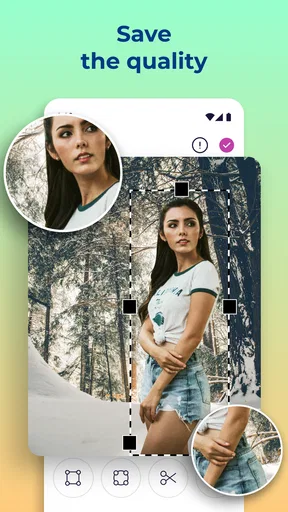
Once you’re satisfied with your creation, sharing it with friends and family is a breeze. The app offers direct sharing options to popular social media platforms like Instagram, Facebook, and WhatsApp. You can also save your photos in high resolution directly to your device.
For those who love showcasing their creativity, this app makes it easy to impress your social circles with just a few taps. Trust me, once you start sharing, you’ll be the talk of the town (or at least your group chat) in no time.
The app is free to download, with optional in-app purchases listed from $0.99 to $149.99 per item. Since a casual user may only need the basic cutout-and-paste idea occasionally, I’d try the free experience before considering any purchase and check the price shown for a specific item before confirming it. That keeps a playful experiment from turning into an unplanned expense. For a one-off birthday image, a free workflow may be enough; frequent users should decide whether any paid option solves a real need for them.
If you’re preparing something to share, I’d inspect the saved image at normal viewing size before sending it. Zooming in while editing can make a small edge look more important than it will be in a chat, while checking the full composition helps reveal mismatched scale or an awkward placement. If the result is meant to be a joke, a slightly rough cut can be fine; if it represents a business or event, I’d take more time or choose a tool with stronger finishing controls.
Where the workflow may not fit
The app’s main task is also its main limitation: success depends on a suitable source photo and patient selection. A magic-wand style selection is most useful when the background is fairly uniform; it is not a substitute for careful edge work on a complicated scene. The lasso gives you more say over the boundary, but that means more manual effort. If you need to make many polished cutouts, or if accuracy around fine hair and transparent objects is essential, a dedicated editor with more detailed masking controls is a better match.
There is a separate situational barrier for anyone sharing a phone or working with personal pictures in public. I’d choose images thoughtfully and review the final composite before sending it to a social app, especially if the background changes the meaning of the original photo. The creative result may be harmless fun, but context matters: a joke that works among close friends may not suit a public post or a work conversation.
On the practical questions people often have, the workflow supports choosing a picture from the gallery or taking one with the in-app camera, then selecting and placing part of it over another image. You can use one of the available backgrounds or import your own, and text and stickers give you simple ways to finish the composition. It is intended for light, visual edits rather than every kind of photo correction, so someone looking for advanced retouching should start elsewhere.
Final Thoughts: A Must-Have for Photo Enthusiasts
In the end, Cut and Paste Photos is a fantastic tool for anyone looking to have some fun with their photos. Whether you’re a seasoned photo editor or just getting started, this app provides all the tools you need to create stunning visual content. It’s intuitive, fun, and doesn’t take itself too seriously – just like photo editing should be.
If you’re looking to spice up your photo game, give Cut and Paste Photos a try. It’s a delightful way to explore your creative side and bring some laughter and joy to your photo collection. Download it today and start crafting your own photo fantasies!
My inclusive verdict is that this is easiest to recommend to someone who enjoys playful edits, can make deliberate touch gestures, and has clear photos to work with. Its simple purpose and forgiving undo/redo workflow lower the learning barrier, but they cannot make fine tracing comfortable for every person or every situation. If your priority is quick visual humor, a pet collage, or a personal greeting, it is worth trying; if your priority is accessible precision, sophisticated blending, or hands-free editing, I’d look for a tool built around those needs instead.
Pros
- User-friendly interface simplifies editing.
- Wide range of editing tools available.
- Quickly remove backgrounds with ease.
- High-quality output without distortion.
- Supports multiple photo formats.
Cons
- Ads can be intrusive during editing.
- Lacks advanced features for pros.
- Occasional app crashes reported.
- Limited free version features.
- Slow performance on older devices.
FAQs for Cut and Paste Photos
What is the primary function of the Cut and Paste Photos app?
The Cut and Paste Photos app allows users to easily cut parts of an image and paste them onto another background. This can be used for creating fun photo montages, editing images for social media, or creatively manipulating photos with precision. The app provides tools that make the process straightforward and user-friendly.
Is the Cut and Paste Photos app free to use?
The app offers a free version with basic features, but there may be in-app purchases or a premium version that unlocks additional tools and functionalities. Users should check the app store for detailed information about pricing and available features before downloading.
What are the system requirements for installing the Cut and Paste Photos app?
The Cut and Paste Photos app is available for both Android and iOS devices. It typically requires a device running Android 5.0 or later, or iOS 11.0 or later. For the best performance, ensure your device has sufficient storage and RAM to handle image processing tasks efficiently.
How user-friendly is the Cut and Paste Photos app for beginners?
The app is designed with an intuitive interface aimed at users of all skill levels. Beginners will find the step-by-step guides and tutorials helpful for navigating the features. Advanced users can take advantage of more complex tools, ensuring that everyone can achieve their desired results with minimal effort.
Does the Cut and Paste Photos app require an internet connection?
While some basic functions of the app can be used offline, certain features like cloud backups, downloading additional content, or accessing online tutorials may require an internet connection. It's recommended to check specific features to understand when a connection is necessary.


